Backstage
The Flagsmith Backstage Plugin brings feature flag observability directly into your Backstage developer portal. It provides three components:
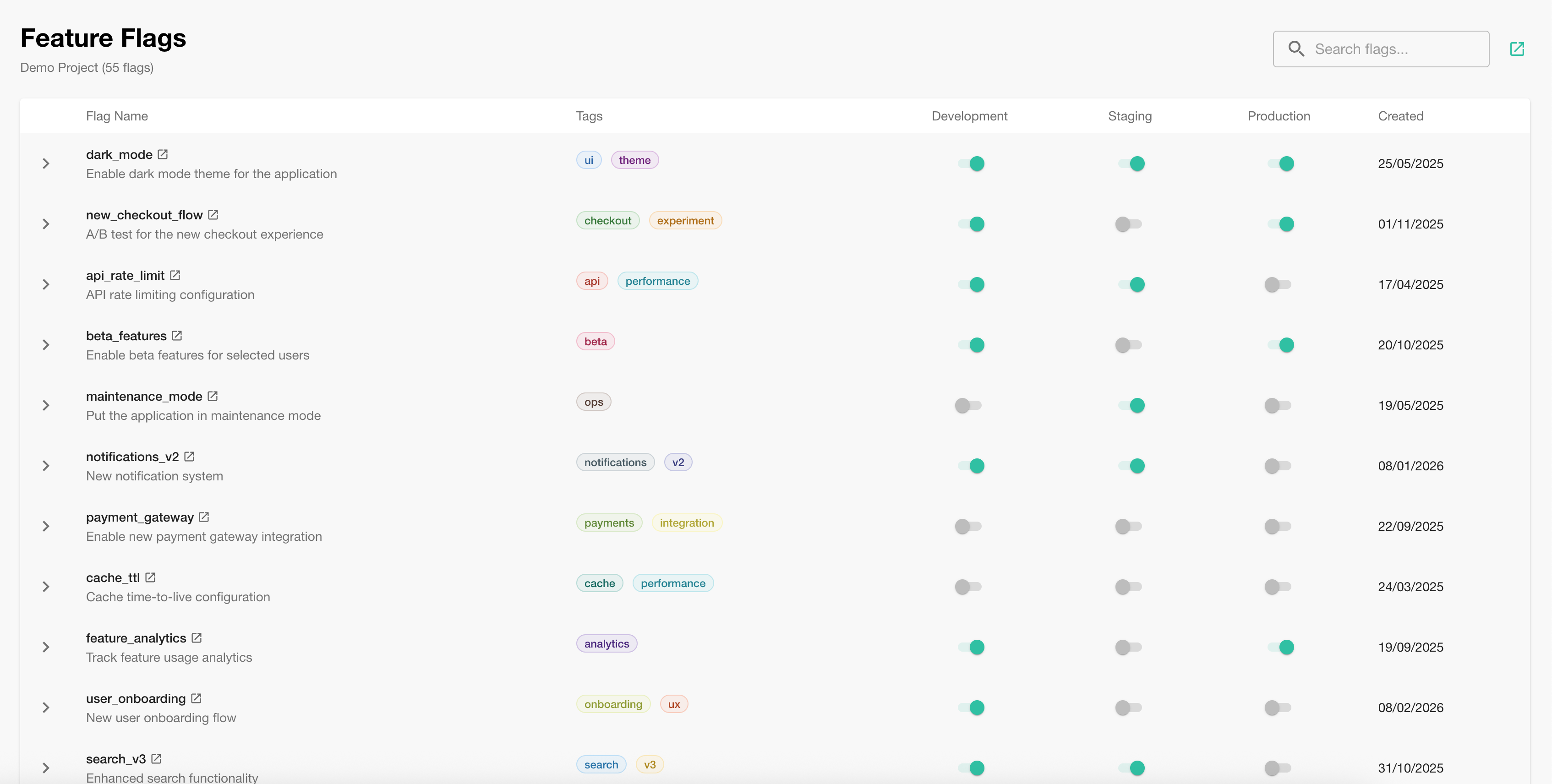
- Feature Flags Tab — A full-page table listing all flags, their tags, and environment states.
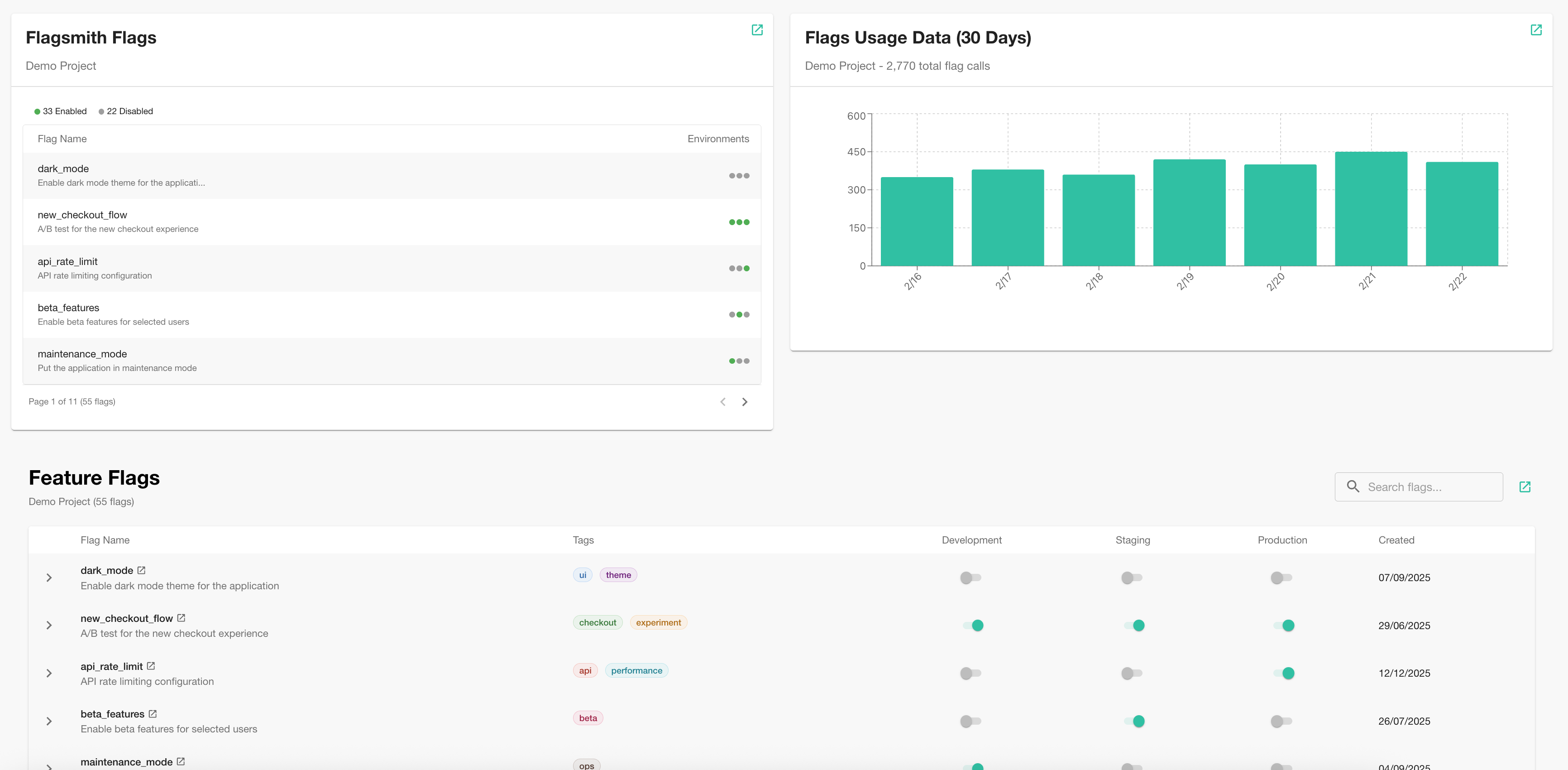
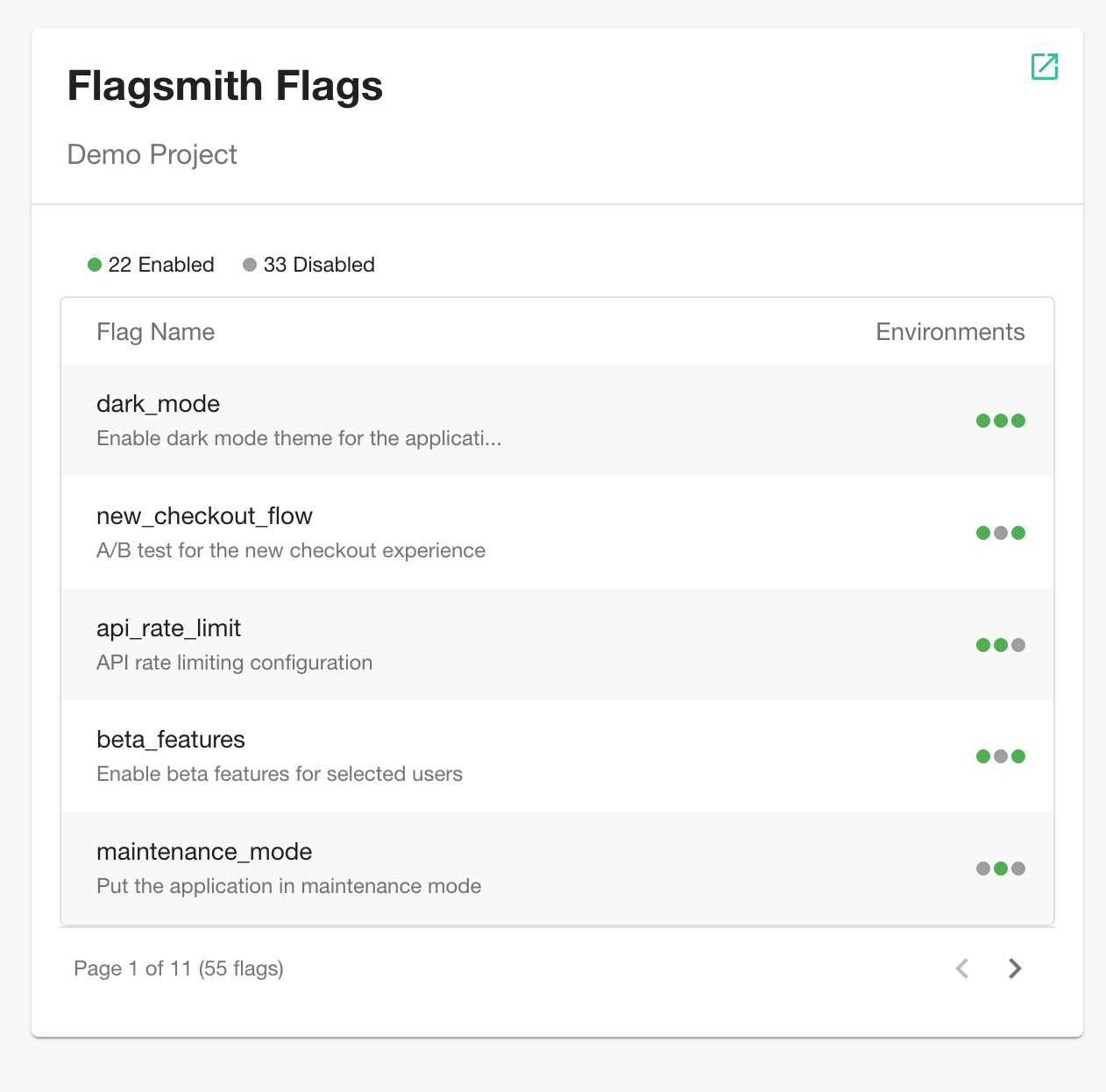
- Overview Card — A quick summary of your feature flags for entity overview pages.
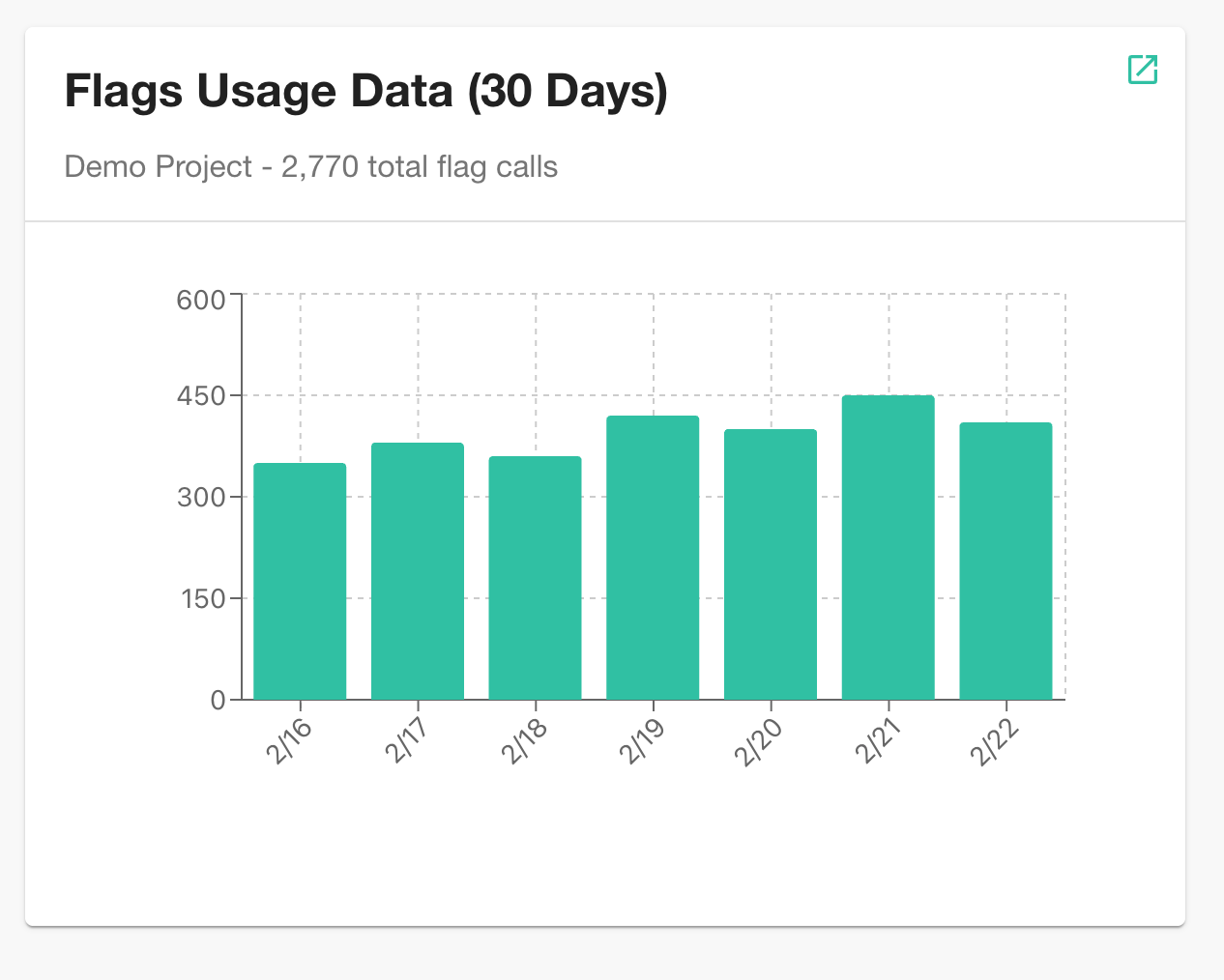
- Usage Card — A chart showing flag usage metrics over time.
Prerequisites
- A running Backstage instance.
- Your Flagsmith organisation Admin API Key: obtain from Organisation Settings > API Keys in Flagsmith.
- Your Flagsmith Project ID: obtain from the Flagsmith dashboard URL, e.g.
/project/<id>/....
Enterprise users: when generating the Organisation API key, select permissions View Project and View Environment, so that Backstage can see your Environments and Features in Flagsmith.
Installation
Install the plugin from your Backstage app root:
yarn --cwd packages/app add @flagsmith/backstage-plugin
Configuration
Configuring the Proxy
Add the Flagsmith proxy configuration to your app-config.yaml:
proxy:
 endpoints:
  '/flagsmith':
   target: 'https://api.flagsmith.com/api/v1'
   headers:
    Authorization: Api-Key ${FLAGSMITH_API_TOKEN}
If you are self-hosting Flagsmith, replace the target URL with your own Flagsmith API address, e.g.
https://flagsmith.example.com/api/v1.
Annotating Your Entities
Annotate your entities in catalog-info.yaml so the plugin knows which Flagsmith project to display:
apiVersion: backstage.io/v1alpha1
kind: Component
metadata:
 name: my-service
 annotations:
  flagsmith.com/project-id: '<YOUR_PROJECT_ID>'
spec:
 type: service
 owner: my-team
 lifecycle: production
| Annotation | Required | Description |
|---|---|---|
flagsmith.com/project-id | Yes | The numeric ID of your Flagsmith project. |
To find your Project ID:
- Go to Project Settings → General in your Flagsmith project
- Click the JSON data dropdown and select Project
- Look for the numeric
idvalue (not theuuid)
You may need to enable JSON references in your Account Settings to see this option.
Adding Components to Entity Pages
Edit your packages/app/src/components/catalog/EntityPage.tsx to add the Flagsmith components.
Feature Flags Tab
Import and add the FlagsTab as a new tab on your entity page:
import { FlagsTab } from '@flagsmith/backstage-plugin';

// Inside your entity page layout, add a new tab:
<EntityLayout.Route path="/feature-flags" title="Feature Flags">
 <FlagsTab />
</EntityLayout.Route>;
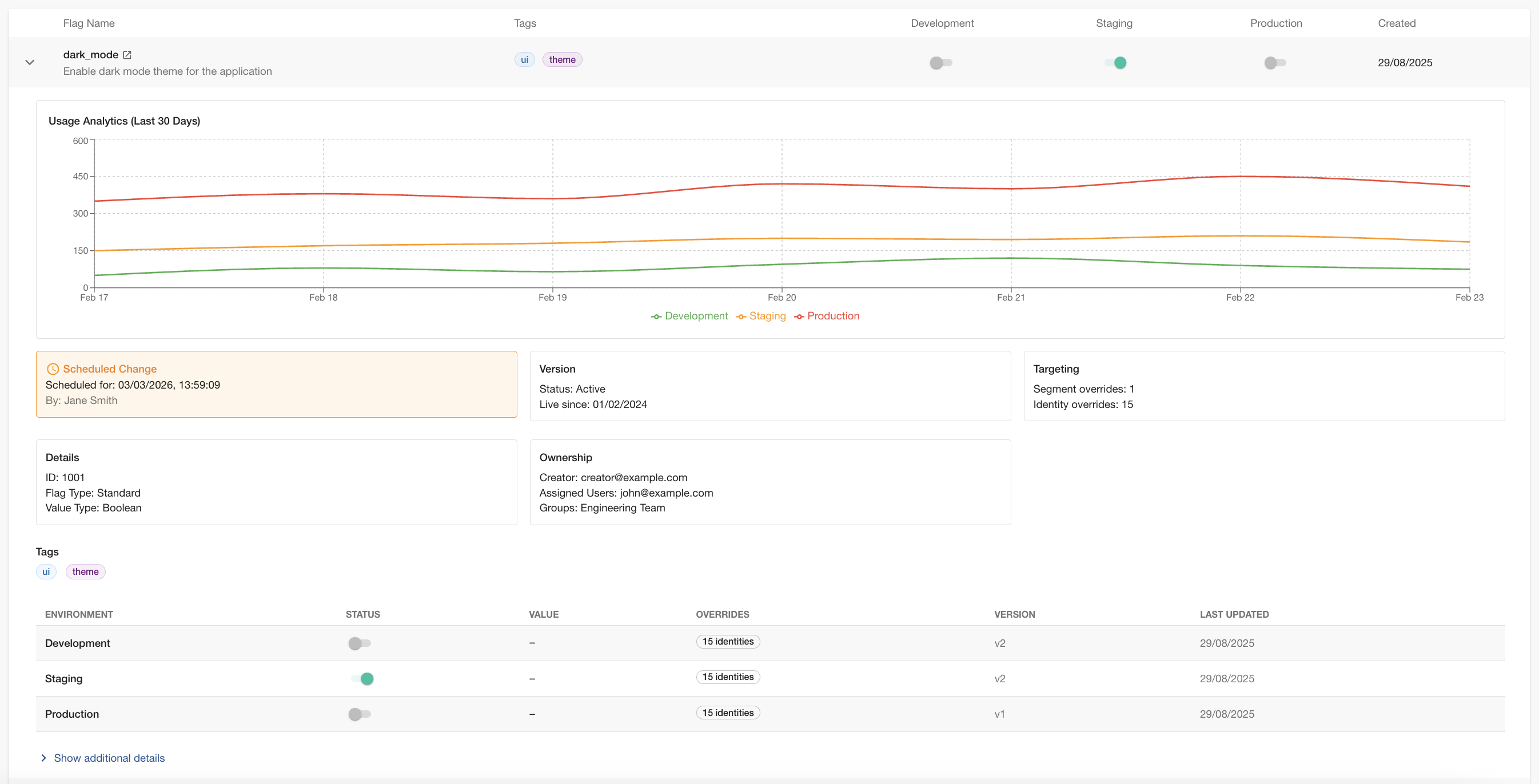
Click a feature in the list to reveal its usage graphs and detailed information:
Overview Card
Add the FlagsmithOverviewCard to your entity overview page:
import { FlagsmithOverviewCard } from '@flagsmith/backstage-plugin';

// Inside your overview grid:
<Grid item md={6}>
 <FlagsmithOverviewCard />
</Grid>;
Usage Card
Add the FlagsmithUsageCard to display flag usage metrics:
import { FlagsmithUsageCard } from '@flagsmith/backstage-plugin';

// Inside your overview grid:
<Grid item md={6}>
 <FlagsmithUsageCard />
</Grid>;